> ## Documentation Index
> Fetch the complete documentation index at: https://flashrdp.com/docs/llms.txt
> Use this file to discover all available pages before exploring further.
# Back Up and Restore Your Server
> Turn on daily off-site backups for a FlashRDP server, take a manual backup before a risky change, and restore a restore point from the Billing Portal.
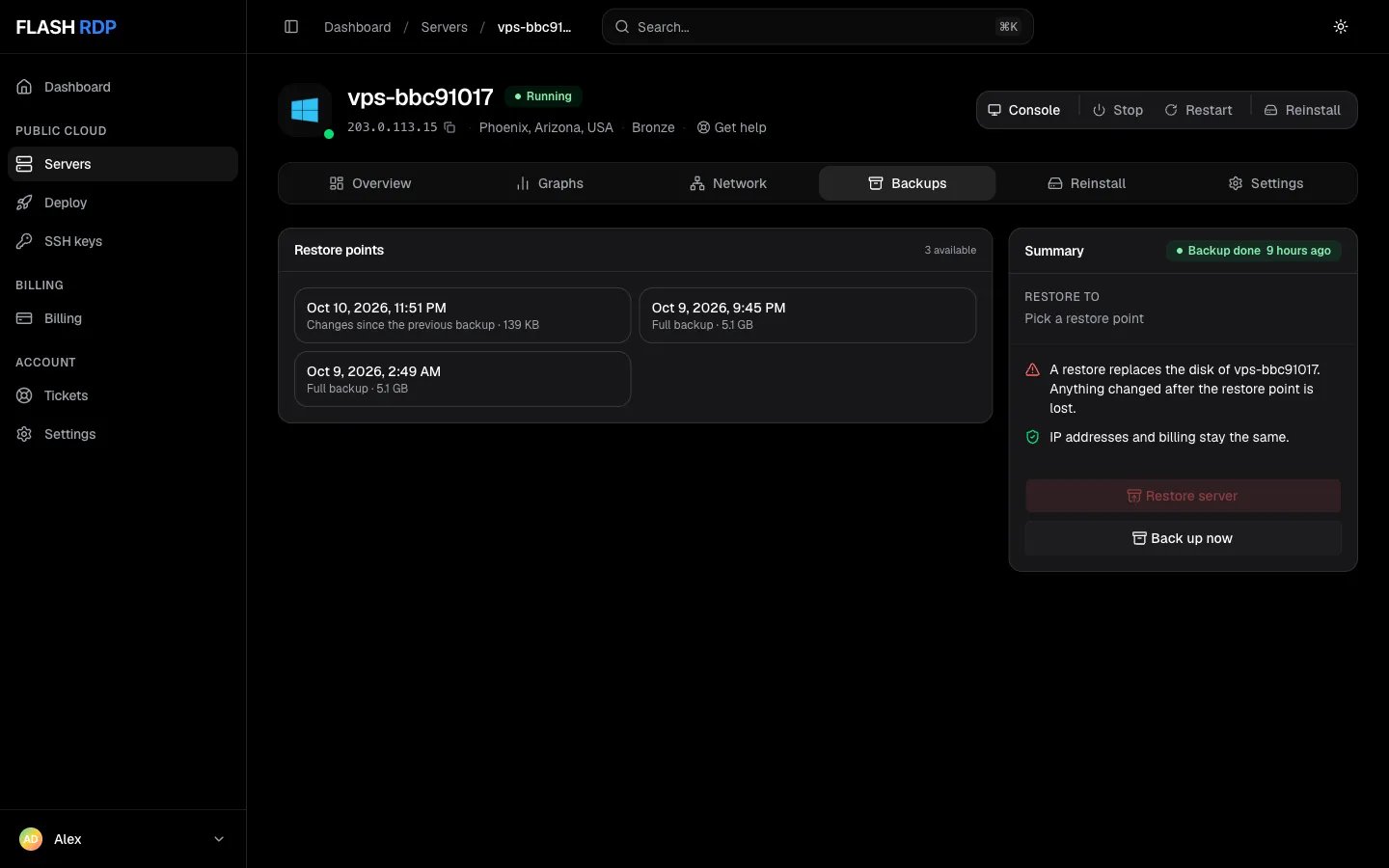
FlashRDP backups copy your whole server every day to storage away from the server. You manage them on the server's **Backups** tab in the [Billing Portal](https://new.flashrdp.com/servers).
* A backup runs **every day**.
* Restore points are kept for **about four weeks**.
* You can take an extra backup by hand before a risky change, and restore any point yourself.
 ## Who gets backups
| Your server | Backups |
| - | - |
| Billed every 3, 6 or 12 months | **Included** at no extra cost. Switch them on with **Enable backups**. |
| Billed monthly | Add the **Backups add-on** (\$5.00 per month, billed with the server), then switch them on. |
## Turn on backups
Click **Servers**, then your server, then the **Backups** tab. It shows **Backups are included with this server**.
Backups switch on right away. The first restore point appears after the first daily backup runs.
Click **Servers**, then your server, then the **Backups** tab. It shows **Add backups to this server** with the monthly price.
This creates an invoice for the add-on and opens it.
Pay it with account credit, cryptocurrency or card. See [Invoices, payments and credit](/docs/account/invoices-and-credit).
Back on the **Backups** tab, once the invoice is paid, click **Enable backups**. Until it is paid, the tab shows **Backups add-on waiting for payment**.
## Take a backup now
On the **Backups** tab, click **Back up now**. The job shows its progress at the top of the summary, and the new restore point appears in the list when it finishes.
You can take up to **2 manual backups per server per day**.
## Restore a backup
A restore replaces the server's whole disk. Everything written after the restore point is lost and can't be recovered. Your IP addresses and billing stay the same.
Under **Restore points**, click the date to go back to. Each point shows whether it is a **Full backup** or **Changes since the previous backup**, and its size.
The summary shows **Restore to** and the date you picked. Click **Restore server**.
Turn on the switch **I understand that everything written to your server after this date is lost**, then click **Restore**.
The server may be offline until the restore finishes. The badge on the **Summary** shows **Restore running** with its progress, then **Restore done**. In our tests a small restore took about a minute.
The restored server uses the passwords it had when the backup was taken. The password saved in the Billing Portal is cleared, so if you need a new one, start the server if it is stopped and click **Reset** next to **Password** on the **Overview** tab. See [Reset server password](/docs/control-panel/reset-server-password).
## Good to know
* Backups can't be switched off from the Billing Portal, downloaded, or put on a custom schedule. [Open a ticket](https://new.flashrdp.com/support/new) if you need one of these.
* Backups, manual backups and restores are not available while the server is suspended, or while another backup or restore is running.
* A failed backup shows **Backup failed** in the summary. If it keeps happening, [contact support](/docs/account/support).
* Server backups complement, but don't replace, your own copies of important data. Keep application-level backups as well.
## Related Articles
Start over with a fresh operating system.
Get a new password after a restore.
Retention, downloads and what happens on cancellation.
Move to a bigger plan.
This documentation is built and hosted on [Mintlify](https://mintlify.com), a developer documentation platform.
## Who gets backups
| Your server | Backups |
| - | - |
| Billed every 3, 6 or 12 months | **Included** at no extra cost. Switch them on with **Enable backups**. |
| Billed monthly | Add the **Backups add-on** (\$5.00 per month, billed with the server), then switch them on. |
## Turn on backups
Click **Servers**, then your server, then the **Backups** tab. It shows **Backups are included with this server**.
Backups switch on right away. The first restore point appears after the first daily backup runs.
Click **Servers**, then your server, then the **Backups** tab. It shows **Add backups to this server** with the monthly price.
This creates an invoice for the add-on and opens it.
Pay it with account credit, cryptocurrency or card. See [Invoices, payments and credit](/docs/account/invoices-and-credit).
Back on the **Backups** tab, once the invoice is paid, click **Enable backups**. Until it is paid, the tab shows **Backups add-on waiting for payment**.
## Take a backup now
On the **Backups** tab, click **Back up now**. The job shows its progress at the top of the summary, and the new restore point appears in the list when it finishes.
You can take up to **2 manual backups per server per day**.
## Restore a backup
A restore replaces the server's whole disk. Everything written after the restore point is lost and can't be recovered. Your IP addresses and billing stay the same.
Under **Restore points**, click the date to go back to. Each point shows whether it is a **Full backup** or **Changes since the previous backup**, and its size.
The summary shows **Restore to** and the date you picked. Click **Restore server**.
Turn on the switch **I understand that everything written to your server after this date is lost**, then click **Restore**.
The server may be offline until the restore finishes. The badge on the **Summary** shows **Restore running** with its progress, then **Restore done**. In our tests a small restore took about a minute.
The restored server uses the passwords it had when the backup was taken. The password saved in the Billing Portal is cleared, so if you need a new one, start the server if it is stopped and click **Reset** next to **Password** on the **Overview** tab. See [Reset server password](/docs/control-panel/reset-server-password).
## Good to know
* Backups can't be switched off from the Billing Portal, downloaded, or put on a custom schedule. [Open a ticket](https://new.flashrdp.com/support/new) if you need one of these.
* Backups, manual backups and restores are not available while the server is suspended, or while another backup or restore is running.
* A failed backup shows **Backup failed** in the summary. If it keeps happening, [contact support](/docs/account/support).
* Server backups complement, but don't replace, your own copies of important data. Keep application-level backups as well.
## Related Articles
Start over with a fresh operating system.
Get a new password after a restore.
Retention, downloads and what happens on cancellation.
Move to a bigger plan.
This documentation is built and hosted on [Mintlify](https://mintlify.com), a developer documentation platform.