

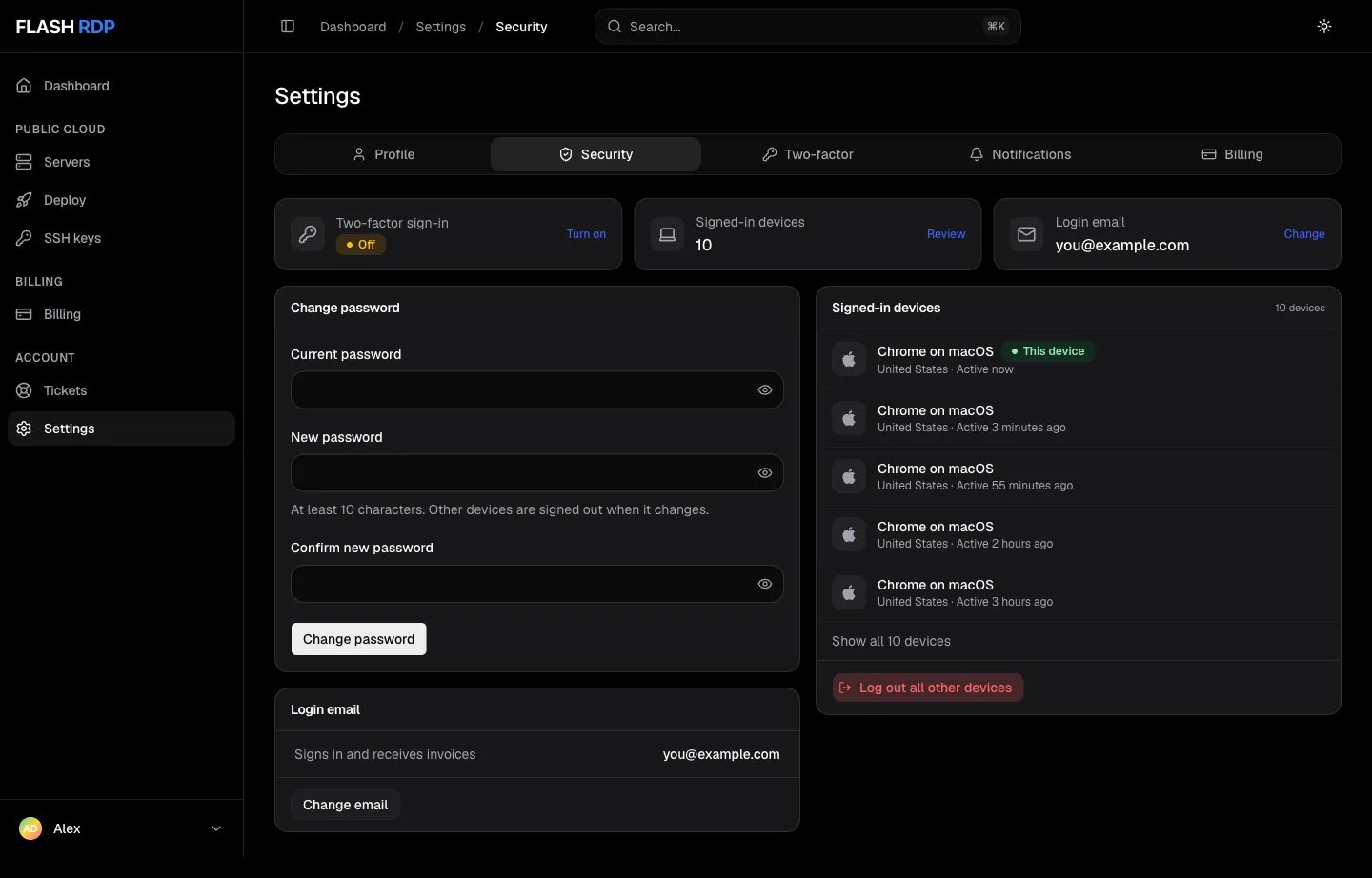
Settings, Security tab
Change your password
1
Open Settings → Security
Click Settings, then the Security tab.
2
Enter your passwords
Under Change password, enter your Current password, a New password (at least 10 characters) and Confirm new password.
3
Save
Click Change password. Your other devices are signed out; this one stays signed in.
Change your login email
Your login email is the address you sign in with. Invoices and account emails go there too.1
Start the change
On Settings → Security, under Login email, click Change email. Enter the new email and your current password, then click Send link.
2
Confirm from the new inbox
Open the link we send to the new address within 30 minutes, in a browser where you are signed in to the Billing Portal.
3
Done
You now sign in with the new address, invoices go there, and every other device is signed out. The old address gets a notice.
Signed-in devices
Signed-in devices lists every browser signed in to your account, with its country and when it was last active. If you see a device you don’t recognise, click Log out all other devices, then change your password. Your current device stays signed in.Two-factor authentication
Two-factor authentication (2FA) adds a second step to sign-in: a 6-digit code from an authenticator app such as Google Authenticator, 1Password or Authy.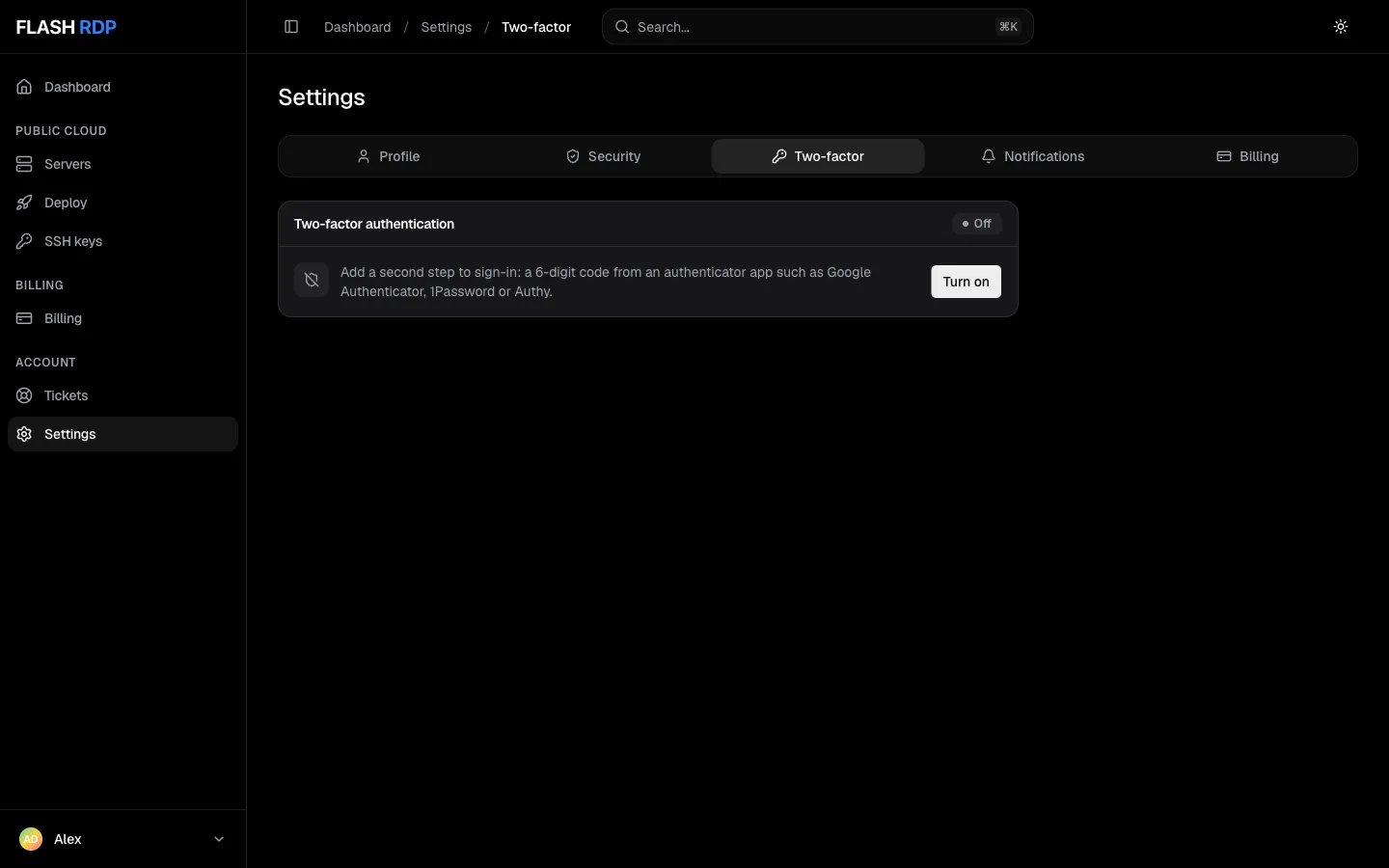
Settings, Two-factor tab
Turn it on
1
Open Settings → Two-factor
Click Turn on.
2
Connect your app
Scan the QR code with your authenticator app, or enter the key shown below it by hand. Enter the 6-digit code the app shows and click Turn on.
3
Save your backup code
Copy the backup code and keep it somewhere safe, away from your phone. Click I saved it.
Turn it off
On Settings → Two-factor, enter your Current password and a Code from your app, or your backup code, then confirm. Other devices are signed out and we email you a notice.Related Articles
Create an account and sign in
Sign in, use 2FA and reset a forgotten password.
Account settings
Profile, notifications and billing details.