

- A backup runs every day.
- Restore points are kept for about four weeks.
- You can take an extra backup by hand before a risky change, and restore any point yourself.
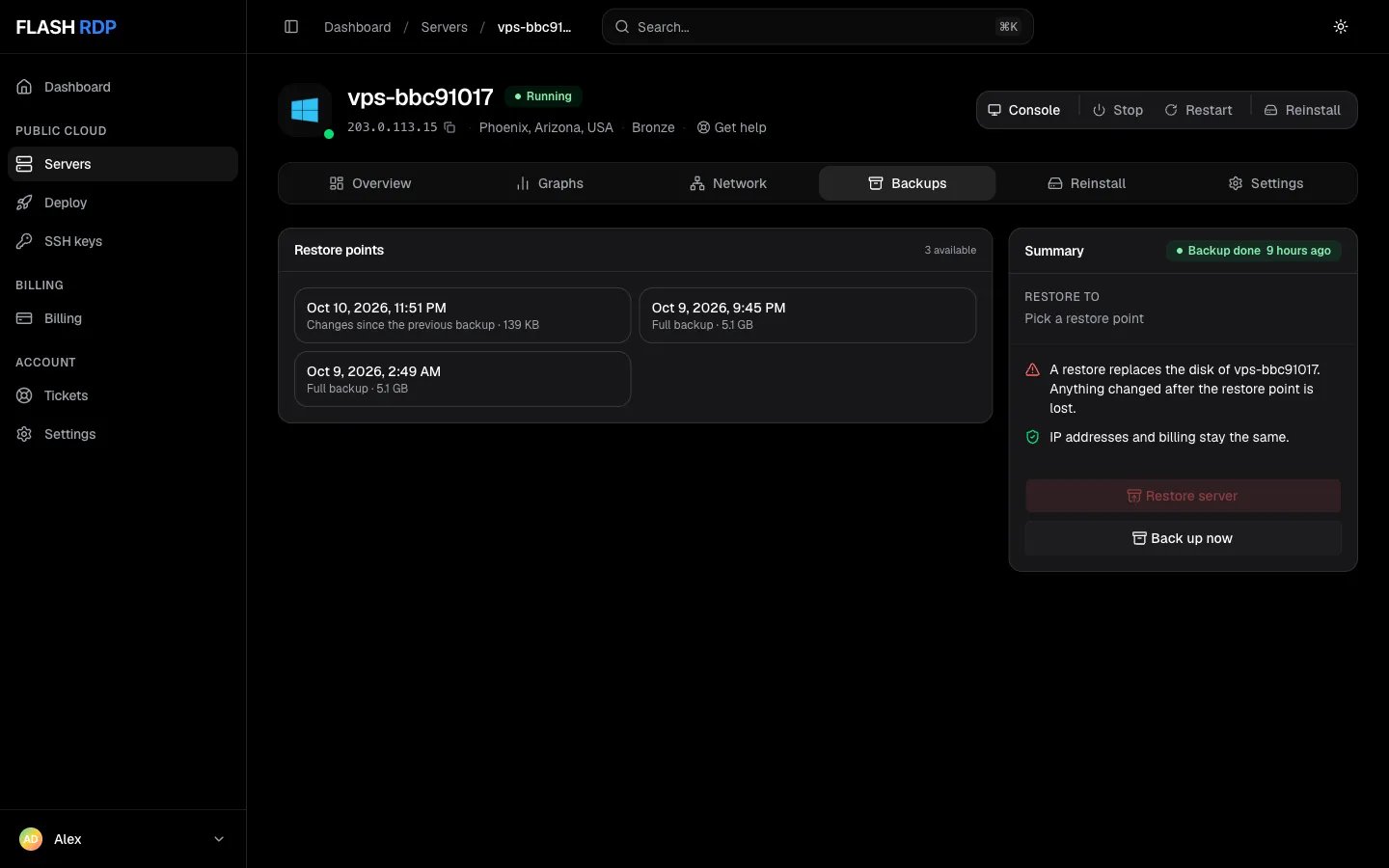
The Backups tab
Who gets backups
Turn on backups
- Included with your plan
- Monthly billing
1
Open the Backups tab
Click Servers, then your server, then the Backups tab. It shows Backups are included with this server.
2
Click Enable backups
Backups switch on right away. The first restore point appears after the first daily backup runs.
Take a backup now
On the Backups tab, click Back up now. The job shows its progress at the top of the summary, and the new restore point appears in the list when it finishes. You can take up to 2 manual backups per server per day.Restore a backup
1
Pick a restore point
Under Restore points, click the date to go back to. Each point shows whether it is a Full backup or Changes since the previous backup, and its size.
2
Click Restore server
The summary shows Restore to and the date you picked. Click Restore server.
3
Confirm
Turn on the switch I understand that everything written to your server after this date is lost, then click Restore.
4
Wait for the restore
The server may be offline until the restore finishes. The status shows Restore running with its progress, then Restore done. In our tests a small restore took about a minute.
5
Sign in again
The restored server uses the passwords it had when the backup was taken. The password saved in the Billing Portal is cleared, so click Reset next to Password on the Overview tab if you need a new one. See Reset server password.
Good to know
- Backups can’t be switched off from the Billing Portal, downloaded, or put on a custom schedule. Open a ticket if you need one of these.
- Backups, manual backups and restores are not available while the server is suspended, or while another backup or restore is running.
- A failed backup shows Backup failed in the summary. If it keeps happening, contact support.
- Server backups complement, but don’t replace, your own copies of important data. Keep application-level backups as well.
Related Articles
Reinstall your server
Start over with a fresh operating system.
Upgrade your plan
Move to a bigger plan.